
Posted on Leave a comment

How to Change Your Password on Linux – Safely

Change your password on Linux - padlock icon, do it safely

How to change your password on Linux – safely

Knowing how to change your password on Linux is one of the first things to do with a new machine, and it takes under a minute. This guide shows the simple way to change it, plus one vital warning about Linux passwords that every owner should understand before they start.

The easy way – through Settings

Open Settings → Users, select your account, and click Password. Enter your current password once, then your new password twice, and confirm. That’s it — the change takes effect immediately, and you’ll use the new password the next time you log in or unlock the screen.

The terminal way

You can also change your password on Linux from a terminal with a single command:

passwd

It asks for your current password, then the new one twice. Nothing appears as you type — that’s normal, Linux hides password characters for security. Press Enter after each.

Choose a strong but memorable password

Aim for something long rather than complicated — a passphrase of a few unrelated words is both stronger and easier to remember than a short string of symbols. Avoid reusing a password from another account, and if you juggle many logins, a password manager is well worth setting up.

The one warning that really matters

On Linux, your password genuinely protects your data — which means if you forget it, it cannot simply be reset or recovered. There is no back door. Unlike some systems, a lost Linux password generally means the machine has to be wiped and set up again to regain access, losing anything not backed up. Write your new password down and keep it somewhere safe, or store it in a password manager.

Back up before you rely on memory

Because a forgotten password can mean a full reinstall, keep a current backup of your files (see our guide to backing up your home folder). That way your documents and photos are safe no matter what.

Set up right, supported locally

Every ArkPC Linux laptop and desktop arrives ready to use on your chosen distro, and we’ll explain password care when it reaches you here in Australia. Locked out or unsure about your setup? Our support team can advise on your options before anything drastic.
Posted on Leave a comment

Which Linux Distro Should I Choose? A Beginner’s Guide

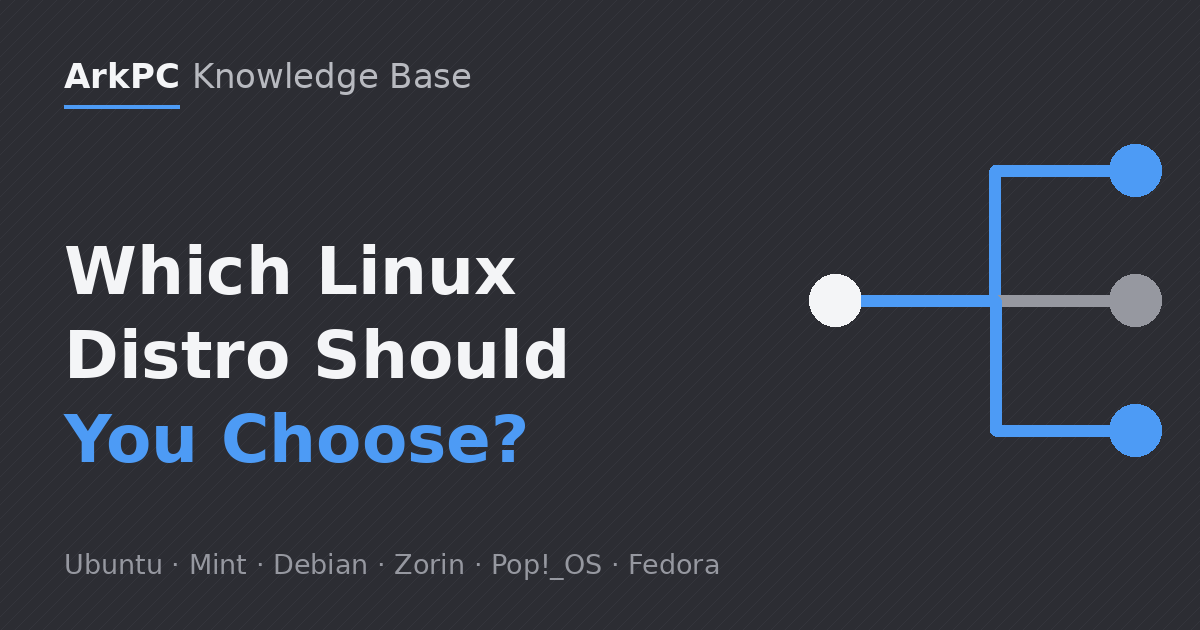
Which Linux distro should I choose - branching paths to Ubuntu, Mint, Debian, Zorin, Pop!_OS, Fedora

Which Linux distro should I choose? A simple guide

“Which Linux distro should I choose?” is the first question most people ask, and the good news is you don’t need to know the technical differences to pick well. The right distribution mostly comes down to what your machine is for and how familiar you want it to feel. Here’s a plain-English guide to the distros we install and test.

Coming from another operating system? Start with Zorin OS or Linux Mint

If you want a desktop that feels instantly familiar — a taskbar, a start-style menu, everything where you’d expect — Zorin OS and Linux Mint are the easiest landing spots. They’re polished, stable, and designed so that everyday tasks need no terminal at all. This is the answer to “which Linux distro should I choose?” for most first-time switchers.

Want the mainstream standard? Choose Ubuntu

Ubuntu is the most widely used desktop Linux, which means almost every guide, forum answer and piece of software targets it first. If you value having the largest community and the broadest software support, Ubuntu is a safe, well-trodden choice that stays current with long-term support releases.

Reviving older hardware? Linux Mint or a lightweight desktop

On machines with modest memory, a lighter desktop keeps things responsive. Linux Mint (especially its Xfce edition) and similar lightweight options run smoothly where heavier systems would struggle, giving an older laptop a genuine second life.

Developing or tinkering? Debian, Fedora or Pop!_OS

Debian is rock-solid and the foundation many other distros are built on — ideal if you prize stability. Fedora ships newer technology sooner, which developers often prefer. Pop!_OS is tuned for productivity and works particularly well on machines with discrete graphics. Any of these is a strong pick if you’re comfortable getting under the hood.

Still unsure? That’s normal

You don’t have to get this perfect. The desktops differ far less than the marketing suggests, and most software runs on all of them. If you’re torn between two, pick the one that looks most comfortable — you can always tell us your use case and we’ll recommend the best fit.

Choose the distro, we’ll handle the rest

When you order a Linux laptop or desktop from ArkPC, you simply select your distro at checkout and we pre-install, configure and test it on the actual hardware here in Australia — no downloading, no setup, no guesswork. Tell us how you’ll use the machine and we’ll help you choose the distro that fits.

Posted on Leave a comment

Microsoft Office Alternative on Linux – LibreOffice & OnlyOffice

Microsoft Office alternative on Linux shown with LibreOffice and OnlyOffice document

Microsoft Office alternative on Linux – LibreOffice and OnlyOffice

Looking for a Microsoft Office alternative on Linux? You have two excellent free options — LibreOffice and OnlyOffice — and both open, edit and save the Word, Excel and PowerPoint files you already have. This guide explains which one to use, how to keep your documents compatible, and how to get started in minutes.

LibreOffice – the all-round default

LibreOffice is the most popular Microsoft Office alternative on Linux and comes pre-installed on most distributions. It’s a full suite: Writer (documents), Calc (spreadsheets), Impress (presentations), plus Draw and Base. It opens .docx, .xlsx and .pptx files directly, and you can keep saving in those formats so colleagues on other systems can still open your work — just choose Keep Current Format when prompted.

OnlyOffice – best for Microsoft file fidelity

If you exchange complex documents with people using Microsoft Office every day, OnlyOffice is worth installing. Its interface mirrors the modern ribbon layout, and it tends to reproduce tricky .docx and .xlsx formatting — tables, tracked changes, advanced cell formulas — more faithfully than any other free option. Many people run LibreOffice for everyday work and keep OnlyOffice on hand for documents that must look pixel-perfect.

Opening and saving Office files

Both suites handle Microsoft formats natively. To make sure a document always saves as .docx (rather than the open .odt format), set the default in Tools → Options → Load/Save → General in LibreOffice. Spreadsheets and presentations have the same setting. If a layout looks slightly different, it’s almost always a missing font.

The font tip that fixes most layout differences

Microsoft’s Calibri and Cambria fonts aren’t included with Linux for licensing reasons, so a document built around them can reflow. Installing the free, metric-compatible Carlito and Caladea fonts (drop-in replacements that take the same space on the page) resolves the vast majority of these differences. On Ubuntu and Mint they’re usually one click away in the software centre.

What about online editing?

You can also edit Microsoft documents in a web browser using free cloud office suites, which is handy for quick edits or sharing. For serious offline work, though, a desktop suite is faster and keeps your files private on your own machine — which is the whole point of running Linux.

Office that’s ready on day one

Every ArkPC Linux laptop and desktop ships with a working office suite already set up on your chosen distro, tested in Australia before it leaves our bench — so you can open your existing documents the moment you switch it on. Not sure which suite fits how you work? Ask our local support team and we’ll point you to the right one.