
Dual boot menu not showing? Here’s how it works and how to get it back
The dual boot menu is the black text screen that appears every time you switch on a computer with two operating systems, letting you choose which one to start. It looks plain, but that’s its strength — it lives outside both systems, so it is extremely reliable. This guide shows you how to read it, and how to bring the dual boot menu back if your computer suddenly starts skipping it.
Reading the menu
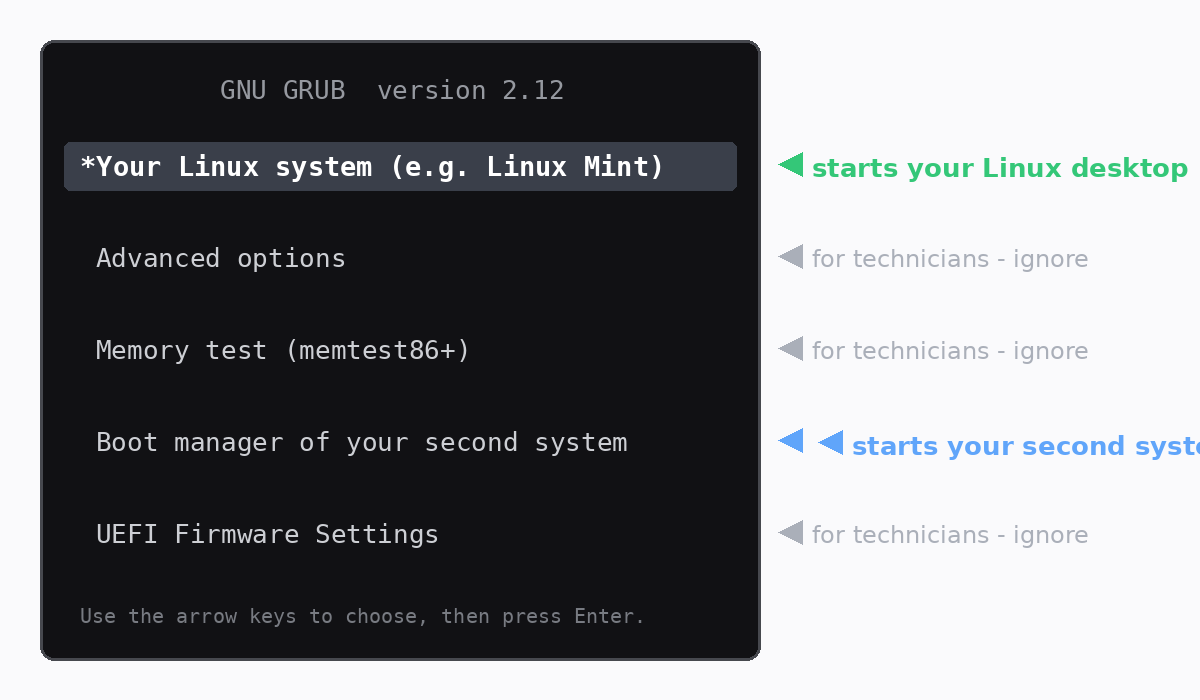
Use the ↑ and ↓ arrow keys to highlight an entry, then press Enter. The first entry is your Linux system and starts automatically after about 10 seconds if you don’t touch anything. The entry mentioning a boot manager starts your second operating system. Everything else — advanced options, memory test, firmware settings — is for technicians and can be safely ignored. Your choice only lasts for that session; next power-on, the dual boot menu asks again.
When the menu disappears
Very occasionally, a major update of your second operating system puts its own boot manager first in the computer’s firmware, so the machine boots straight into it and the dual boot menu never appears. Nothing has been deleted — your Linux system and all your files are still exactly where they were. The firmware is simply pointing at the wrong door.
Getting the dual boot menu back
Step 1. Restart the computer and immediately tap your machine’s boot-menu key — commonly F12, F9, F10 or Esc — about once per second until a list of boot devices appears.
Step 2. Choose the entry named “ubuntu” or the one carrying your Linux distro’s name. The dual boot menu returns immediately, and in most cases stays back for good.
Step 3. If it keeps happening, open the BIOS/UEFI settings (often the Del or F2 key at power-on) and move the Linux entry to the top of the boot order list. That makes the menu permanent again.
Dual boot without the guesswork
Every dual-boot computer we build ships with the boot menu configured, tested through restarts and updates, and a printed quick-guide in the box — because choosing your system should be the easiest part of your day. Browse our Linux desktops and laptops with the Dual Boot option at checkout, or ask ArkPC support if your menu is misbehaving — we answer real questions and often turn them into new guides.